
In short. A painting has no size: paint anywhere, and it grows to fit. Two fingers move, zoom and turn the canvas; a two-finger tap undoes, a three-finger tap redoes. Fit Painting, Actual Pixels and Flip View are in the Actions menu, the wrench at the top left.
No edges
A new painting starts as an open canvas with no size. Move past what you’ve painted and keep going: the painting grows with you, and you choose nothing until you export, which takes everything painted. However far it grows, zooming and painting stay smooth.
Move, zoom and turn
On iPhone and iPad:
- Move: drag with two fingers.
- Zoom: pinch.
- Turn: twist two fingers.
On a Mac, scroll on the trackpad to move, pinch to zoom and twist to turn; ⌘ and the scroll wheel zoom too, and a two-finger double tap fits the painting.
The view’s commands
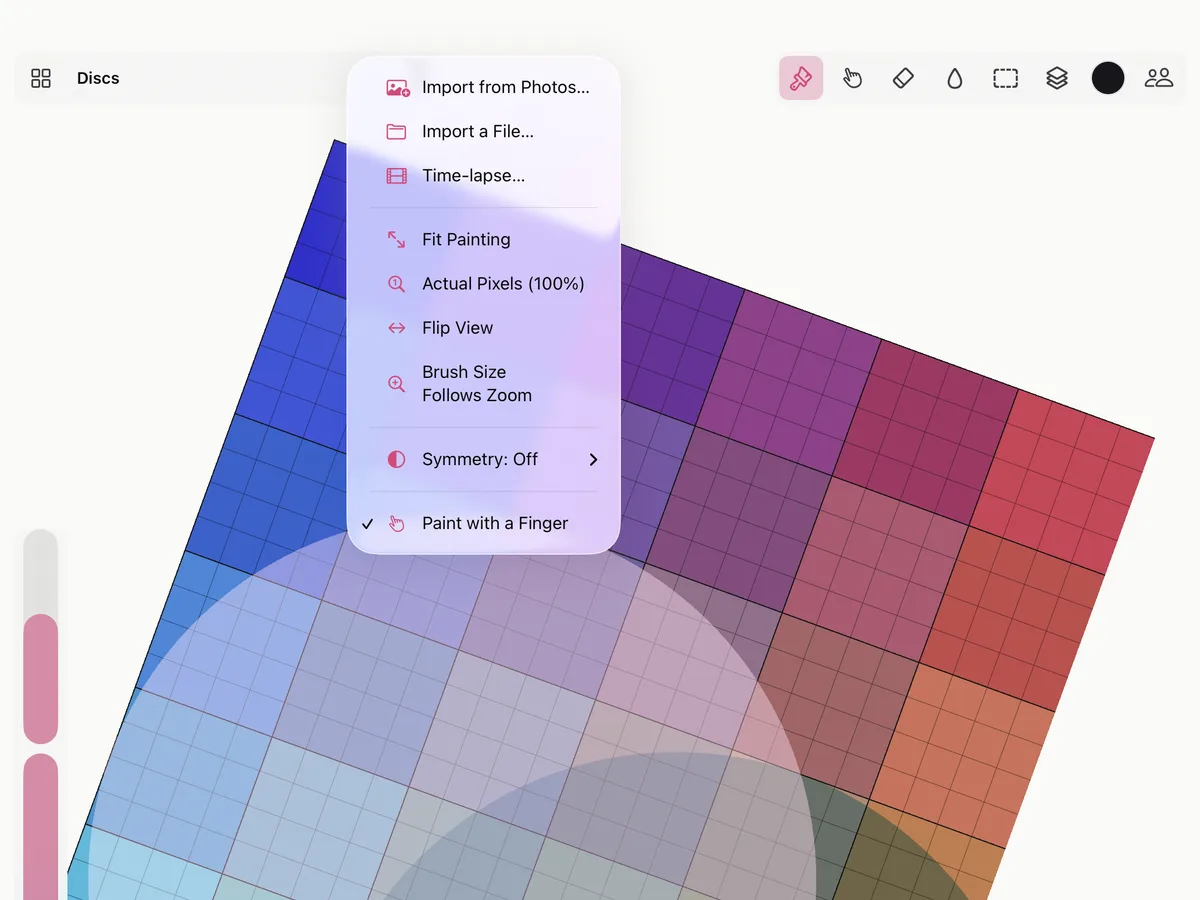
In the Actions menu (the wrench at the top left):
- Fit Painting shows the whole painting.
- Actual Pixels (100%) shows one pixel of the painting for each pixel of the screen.
- Flip View mirrors the view left to right, to see the painting with fresh eyes. The painting itself doesn’t change; choose it again to flip back.
Hide the tools
Tap with four fingers to hide the tools and see only the painting, and again to bring them back. On a Mac, press Tab.
Undo and redo
Tap with two fingers to undo, with three to redo, or use the arrows under the sliders (in the bottom bar on iPhone). On a Mac, ⌘Z and ⇧⌘Z.
Smudjo keeps 400 steps of undo on iPhone and iPad, and 1,000 on a Mac. Every step is also kept in the painting’s history, which the time-lapse plays back.