
In short. Tap Export (the box with the arrow, at the top left) and choose Picture for a PNG of the whole painting, or Time-lapse for an MP4 video of it being painted. Then Share sends it anywhere: Photos, Messages, Files, another app.
A picture
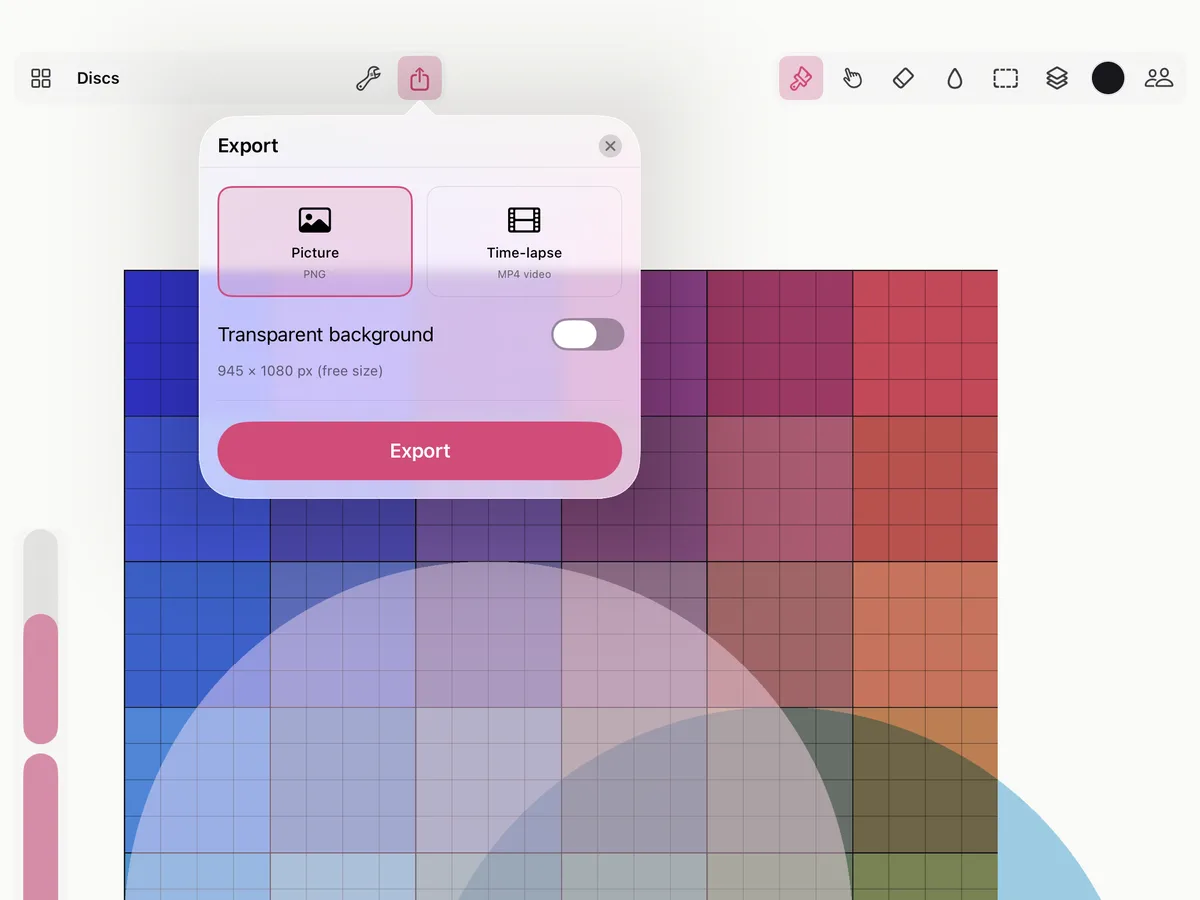
- Tap Export, at the top left of the painting.
- Picture is chosen. Turn on Transparent background to leave out the paper, for a picture to put over something else.
- The panel says the size the picture will come out at. Tap Export.
- Share sends the PNG on; Copy puts it on the clipboard, to paste in another app.
The picture takes everything painted, whatever its size: the infinite canvas has no edges to choose. Hidden layers and reference pictures are left out.
How big. In the free version a picture comes out 1080 pixels on its long side. Smudjo Unlocked exports at the painting’s full resolution, up to 8192 pixels on the long side; the panel says when a larger painting is scaled down to fit.
A time-lapse
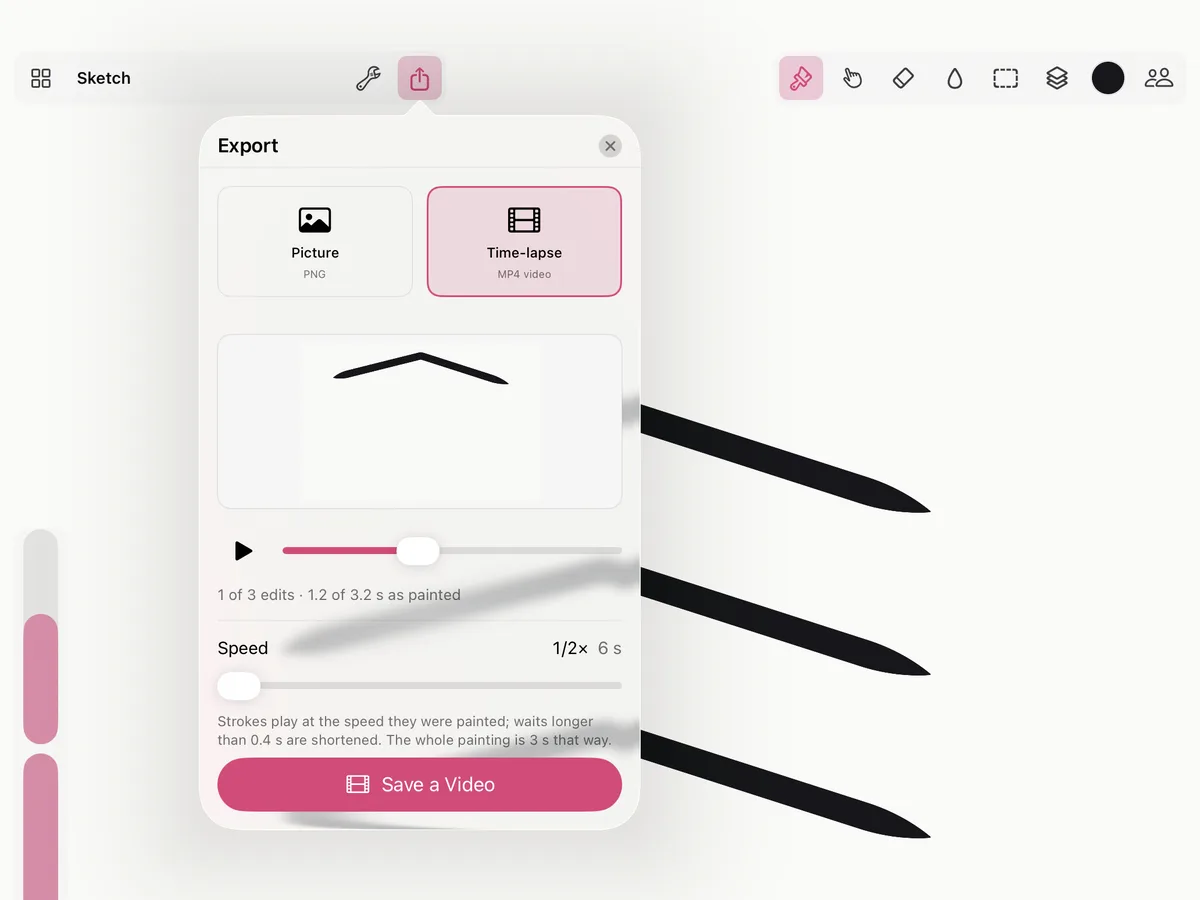
Smudjo keeps every stroke in the painting’s history, so a time-lapse shows it being made from the first stroke, at any time, in a painting started long before.
- Tap Export, then Time-lapse. Or choose Time-lapse… in the Actions menu.
- Play it, or drag the scrubber to any moment.
- Choose the Speed: strokes play at the speed they were painted, and pauses longer than a moment are shortened. The panel says how long the video will be.
- Tap Save a Video, then share the MP4.
On the home screen, the ▶ on a painting plays its time-lapse; Time-lapse… is also in a painting’s menu.
A session’s time-lapse
After painting together, choose This session in the time-lapse to play only what the session added, each painter’s strokes marked with their name. It’s what See the Recap opens when a session ends.