
In short. Tap the brush at the top right, then tap it again for the library: twelve brushes, and yours above them. Size and opacity are the two sliders on the left (at the bottom on iPhone). Smudge, the eraser and fill sit beside the brush; the circle is the color.
The twelve brushes
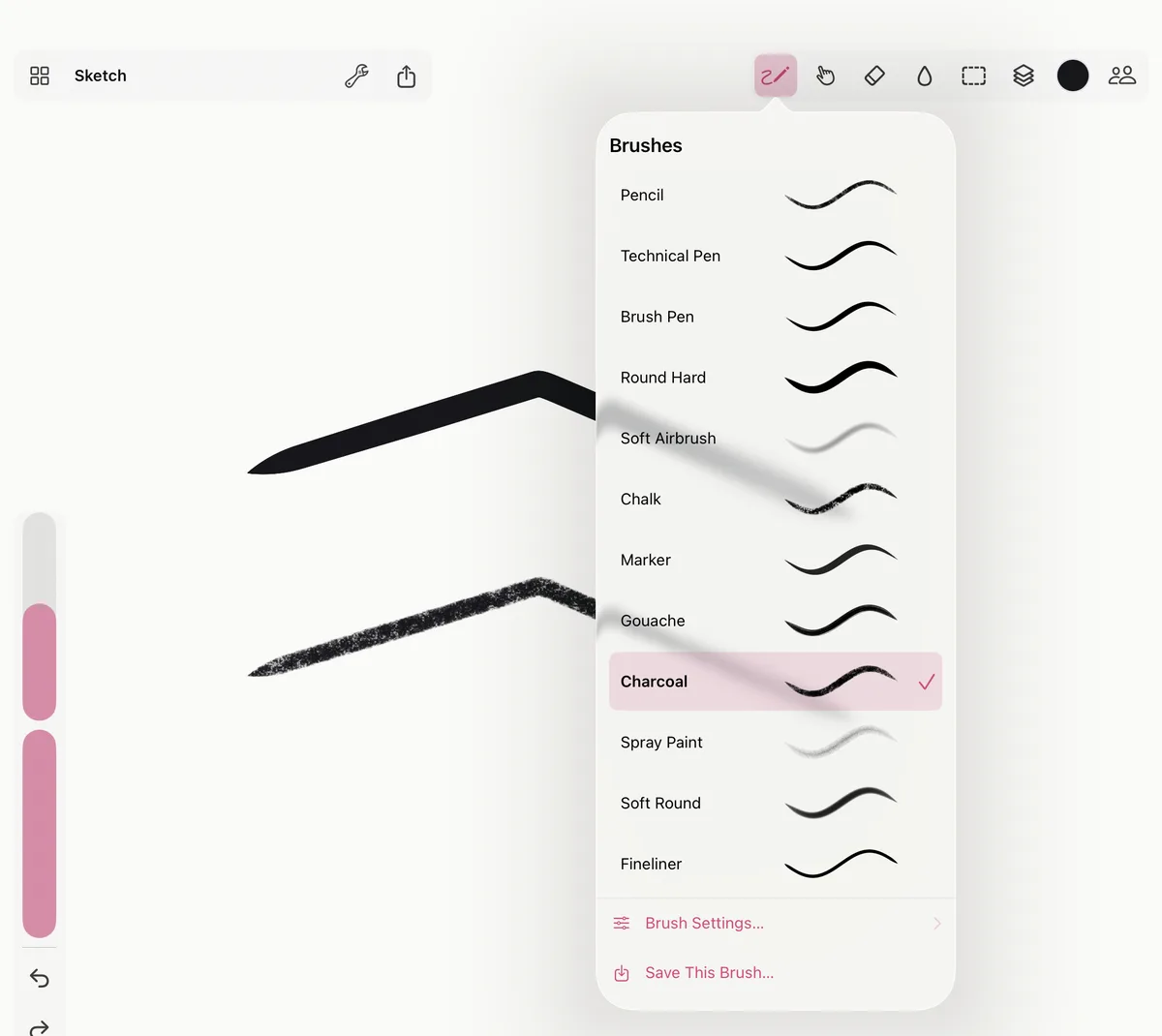
Pencil, Technical Pen, Brush Pen, Round Hard, Soft Airbrush, Chalk, Marker, Gouache, Charcoal, Spray Paint, Soft Round and Fineliner. Every one reads pressure, and tilt and speed where a real one would: tilt the Apple Pencil to shade with the side of the pencil or the chalk, draw faster for a thinner ink line. Chalk and charcoal have a paper grain that fills in as you go over it again.
Tap the brush button once to paint with it, and again to open the library and choose another. With a keyboard, 1 to 9 choose the first nine.
Size and opacity
The two sliders on the left of the canvas set the brush’s size and opacity; on iPhone they’re in the bottom bar. With a keyboard, [ and ] make the brush smaller and larger.
A brush’s size is in the painting’s pixels: zoom in, and the same brush paints bigger on screen. Brush Size Follows Zoom, in the Actions menu (the wrench at the top left), keeps it the same size on screen instead, so zooming in gives finer strokes. It’s kept with each painting.
Smudge, the eraser and fill
- Smudge (the hand, or S) picks up the paint under it and drags it along.
- The eraser (E) takes paint away. Tap the brush to paint again.
- Fill (the drop, or F) fills the area of the current layer around where you tap, within what’s on screen. Tap Fill again for its Tolerance: higher fills across more nearly-the-same colors.
Color
Tap the circle at the end of the tools for the color panel: a picker, the color as a hex code, and palettes. To take a color from the painting, hold a finger on the canvas (the eyedropper); on a Mac, Option-click.
Painting with a finger
A finger paints, as the Apple Pencil does. On iPad, to keep painting for the Pencil and have a finger only move the canvas, turn off Paint with a Finger in the Actions menu (or in Brush Settings). On iPhone, a finger always paints. Gestures with two or more fingers never paint: they move, zoom and turn the canvas, and undo (see The infinite canvas).
Symmetry
Symmetry in the Actions menu mirrors each stroke as you paint: Vertical, Horizontal, Quadrant (both at once) or Radial. The guides cross the middle of the view when they come on; Put the Guides in the Middle moves them back there after you’ve moved around.
Brush settings
Open the library and tap Brush Settings… to tune the brush you’re on:
- Input: Paint with a finger, and the Pressure curve, how hard you press for a full stroke.
- The brush: Spacing, Smoothing, Flow, Min size and Min flow (what the lightest touch gives), Hardness, Grain and Grain scale, how tilt changes size, opacity and the tip’s shape (Tilt → size, Tilt → opacity, Tilt → flatten), Speed → thin and Scatter.
Reset puts the brush back as it was.
Brushes of your own
Tune a brush, then Save This Brush… in the library (or Save as a Brush… in its settings) and give it a name. Your brushes sit above the built-in ones and come back each time you open Smudjo.
On one of yours, Keep Changes saves what you’ve tuned since; Save as New… keeps it as another brush. Hold one of your brushes in the library (right-click on a Mac) to Rename…, Move Up, Move Down or Delete it.